Static HTML
Export your notebook to a static, non-interactive HTML file.
Export from the marimo editor
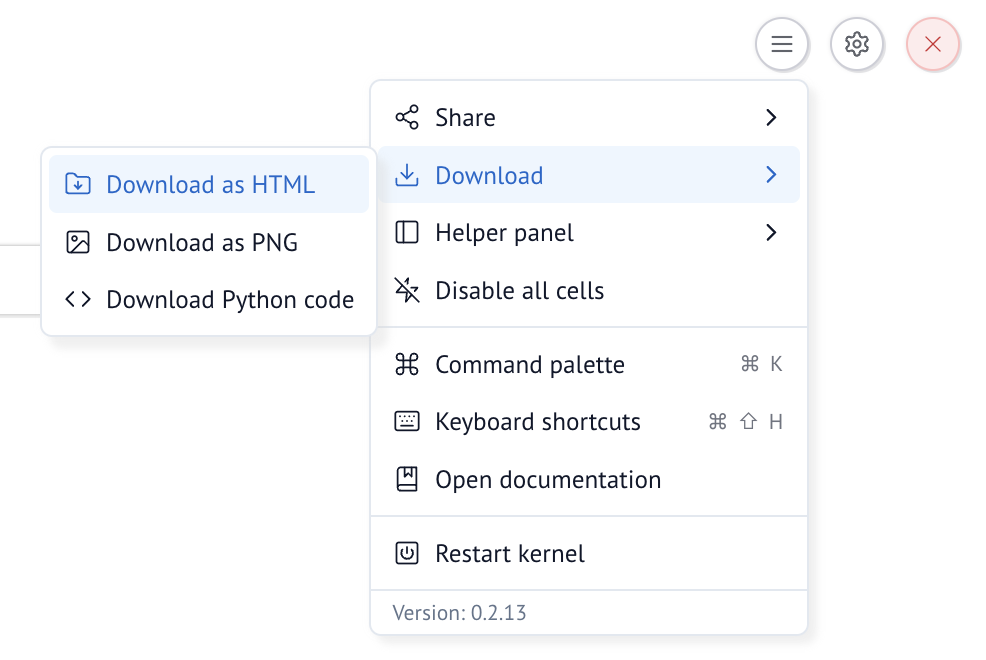
Export the current view of your notebook to static HTML via the notebook menu:
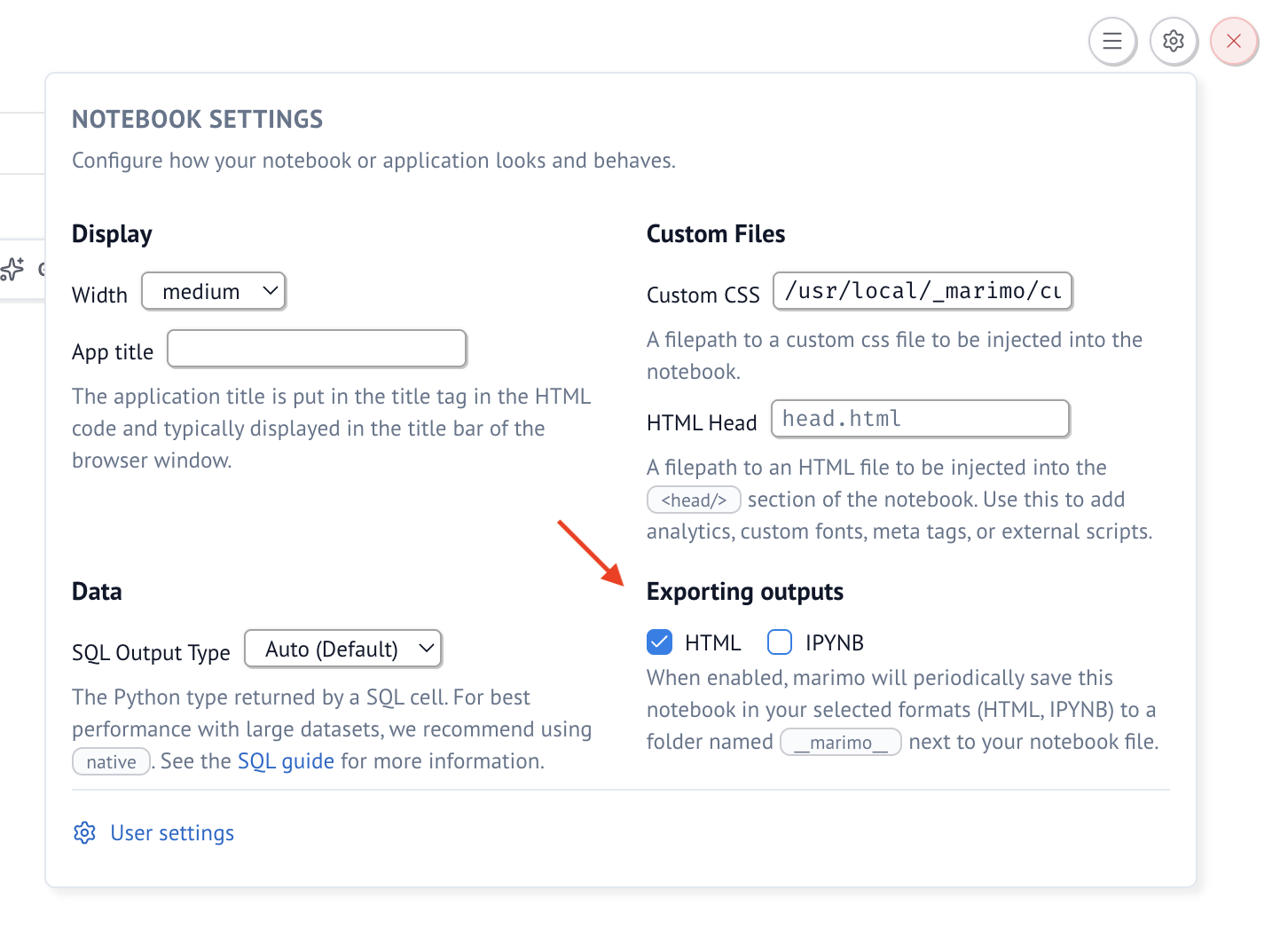
Additionally, you can configure individual notebooks to automatically
save as HTML through the notebook menu. These automatic snapshots are
saved to a folder called __marimo__ in the notebook directory.
Export from the command line
Export to HTML at the command line:
Exclude code from the export:
Export the notebook whenever it changes on disk:
Exporting runs your notebook. When you export from the command line, marimo runs your notebook to produce its visual outputs before saving as HTML.
Errors. If any cells error during the export process, the status code will
be non-zero. However, the export result may still be generated, with the error
included in the output. Errors can be ignored by appending || true to the
command, e.g. marimo export html notebook.py || true.
Pre-render HTML exports
Static marimo exports execute Javascript to render the notebook source code as HTML at browser runtime. If you would like to directly serve the HTML representation of your notebook, you can run the following post-processing script and serve the resulting file instead.
# /// script
# requires-python = ">=3.9"
# dependencies = [
#     "playwright",
# ]
# ///

import os
import subprocess
from playwright.sync_api import sync_playwright

input_file = "input.html"
output_file = "output.html"

subprocess.run(["playwright", "install", "chromium-headless-shell"], check=True)

with sync_playwright() as p:
    with p.chromium.launch(headless=True) as browser:
        page = browser.new_page()
        page.goto(
            f"file:///{os.path.abspath(input_file)}",
            wait_until="networkidle",
        )
        with open(output_file, "w", encoding="utf-8") as f:
            f.write(page.content())