PDF
Export marimo notebooks to PDF documents or slide decks.
PDF export works out-of-the-box on on molab.
Export to PDF from the marimo editor
Export to PDF from the notebooks action menu. This requires a few dependencies, which you will be prompted to install. It also requires LaTeX to install.
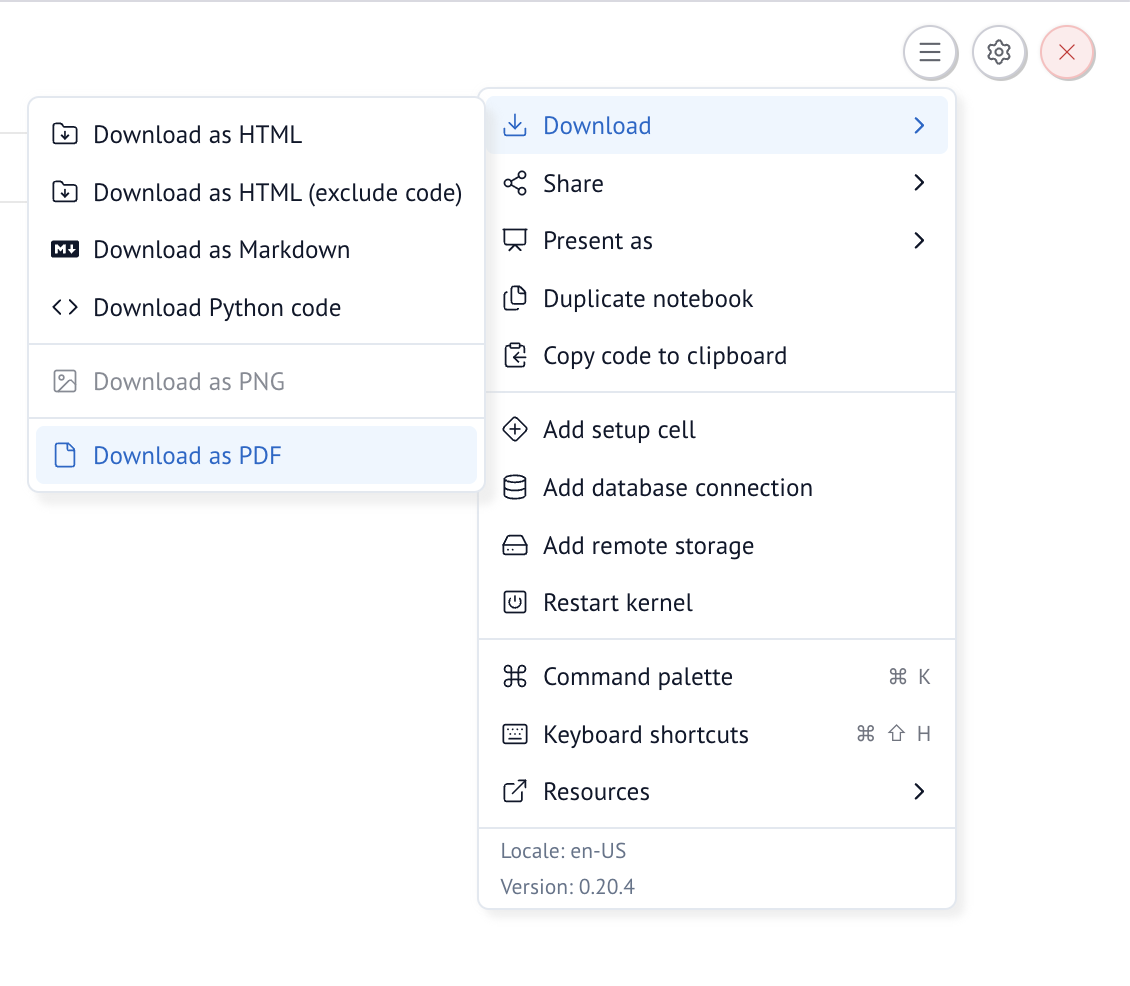
You can also export to PDF from the command palette (Ctrl/Cmd+K).
Export to PDF from the command line
You can export directly with marimo:
To exclude code cells:
To see all options, use
Rasterized output capture
Rasterized PNG fallback capture for marimo widget HTML (including anywidgets)
and Vega outputs is enabled by default. Use --no-rasterize-outputs to disable
it.
Use --raster-scale (range 1.0 to 4.0, default 4.0) to trade export speed/file size for sharper captured output. Use --raster-server=static (default) for a static capture page, or --raster-server=live to capture through a live notebook server.
Choose the raster server mode carefully
marimo gives you control over how output is captured.
Use --raster-server=live when a widget needs Python to finish rendering.
Otherwise, prefer the default --raster-server=static.
The notebook below is a concrete case where --raster-server=live helps.
This widget starts at Initializing... and then updates to
count is ... from ... host after it receives data from Python.
Static capture can freeze the initial placeholder; live capture gets the
updated output.
# Static mode captures only the initial "Initializing..." placeholder
marimo export pdf examples/outputs/live_raster.py \
  -o live-raster-static.pdf --raster-server=static --no-sandbox --no-include-inputs

# Live mode captures the updated widget output
marimo export pdf examples/outputs/live_raster.py \
  -o live-raster-live.pdf --raster-server=live --no-sandbox --no-include-inputs
Rasterization dependencies
Rasterized output capture requires Playwright and Chromium:
Slides
To export as a slides PDF, use the slides preset:
--raster-server=live is recommended for slide exports because it better preserves
slide aspect ratio and captures widget-heavy outputs more reliably.
Available presets:
--as=document: Standard document PDF (default)--as=slides: Slide-style PDF using reveal.js print layout
Export to PDF using Quarto
The marimo Quarto plugin enables exporting to PDF and other formats with Pandoc. See Publishing with Quarto for more details.
Export via Jupyter notebook
If you export to a Jupyter notebook, you can leverage various Jupyter ecosystem tools. For PDFs, you will
need to have Pandoc and TeX installed. The examples below use uvx, which you can obtain by installing uv.
NOTEBOOK=notebook.ipynb

# Convert to PDF using nbconvert
uvx --with nbconvert --from jupyter-core jupyter nbconvert --to pdf $NOTEBOOK

# Convert to web PDF
uvx --with "nbconvert[webpdf]" --from jupyter-core jupyter nbconvert --to webpdf $NOTEBOOK --allow-chromium-download

# Convert to slides
uvx --with nbconvert --from jupyter-core jupyter nbconvert --to slides $NOTEBOOK

# Convert to rst with nbconvert
uvx --with nbconvert --from jupyter-core jupyter nbconvert --to rst $NOTEBOOK

# Generate PNG/PDF of specific cells using nbconvert
uvx --with nbconvert --with jupyter --from jupyter-core jupyter nbconvert --to pdf --execute --stdout $NOTEBOOK \
  --TemplateExporter.exclude_input=True

# Use nbconvert programmatically for more control
uv run --with nbconvert python -c "
from nbconvert import PDFExporter
import nbformat
nb = nbformat.read('$NOTEBOOK', as_version=4)
pdf_exporter = PDFExporter()
pdf_data, resources = pdf_exporter.from_notebook_node(nb)
with open('notebook.pdf', 'wb') as f:
    f.write(pdf_data)
"
You can also use other tools that work with Jupyter notebooks: